
A few illustrations turn a plain Notion page into something that looks designed: a cover image on a project hub, a friendly character on a wiki, a small scene at the top of a template. You do not need a designer or a paid stock plan to get there. Plenty of libraries offer free illustrations that drop straight into Notion, and this guide covers the eight best, plus how to add them and the one format detail that trips people up.
How to add illustrations to Notion
There are three main ways to get an illustration onto a Notion page.
Page covers. Open a page, click Add Cover, then Change Cover, and upload your illustration or paste its image link. This is the banner at the very top, and a wide illustration works best here.
Inline images. Type /image and upload a file, drag an image straight onto the page, or paste an image URL. Use this for a hero at the top of the body or a small graphic beside a heading.
Callouts and columns. Drop a small illustration into a callout block or a column next to text to break up a long page without a full-width banner.
Notion also has a built-in Unsplash picker for covers, but that is stock photos, not illustrations. To use an illustration as a cover, upload your own file or paste an image link, which is exactly where the sources below come in.
One format note saves a lot of frustration: use PNG. Notion renders PNG and JPG inline in image blocks and covers, but an SVG file usually uploads as a downloadable attachment rather than displaying. Most of the sources below offer a PNG download, which is exactly what Notion wants.
The best free illustration sources for Notion
Each of these is free and works cleanly in Notion. They are ordered from the most flexible down to the more specialized.
1. Pixels Market
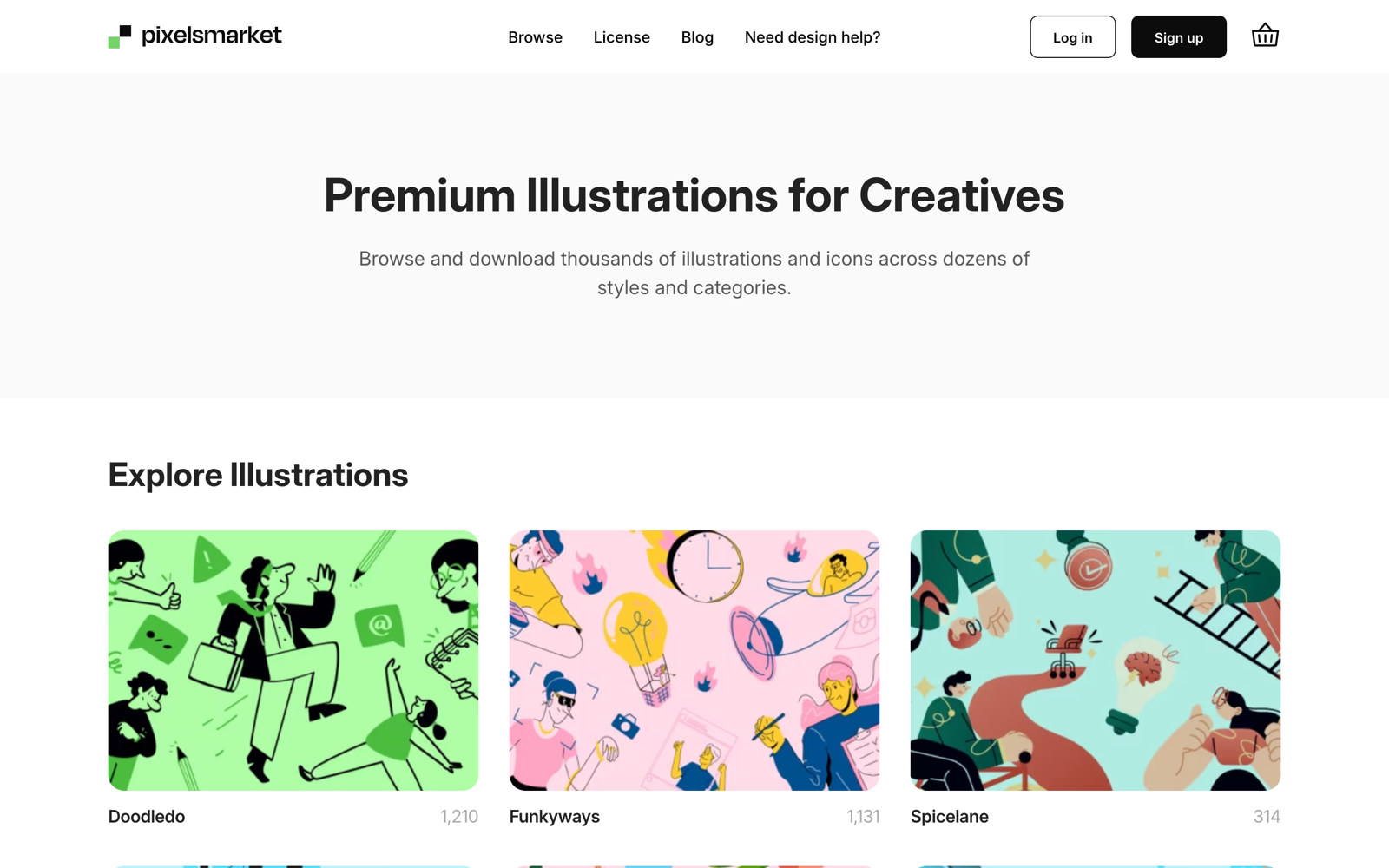
Pixels Market (that is us, so weigh accordingly) is the most flexible source for Notion, because you get many styles in one place and a free PNG download, which is the format Notion prefers. There are 14,880 illustrations across 18 styles, and you can recolor any of them in the browser to match your Notion theme before you download. Grab a wide scene for a page cover, a character for a wiki, or a small spot graphic for a callout, all in a matching style. That single-source consistency matters in Notion, where pages built from different templates tend to clash the moment you put them side by side in one workspace.
2. unDraw
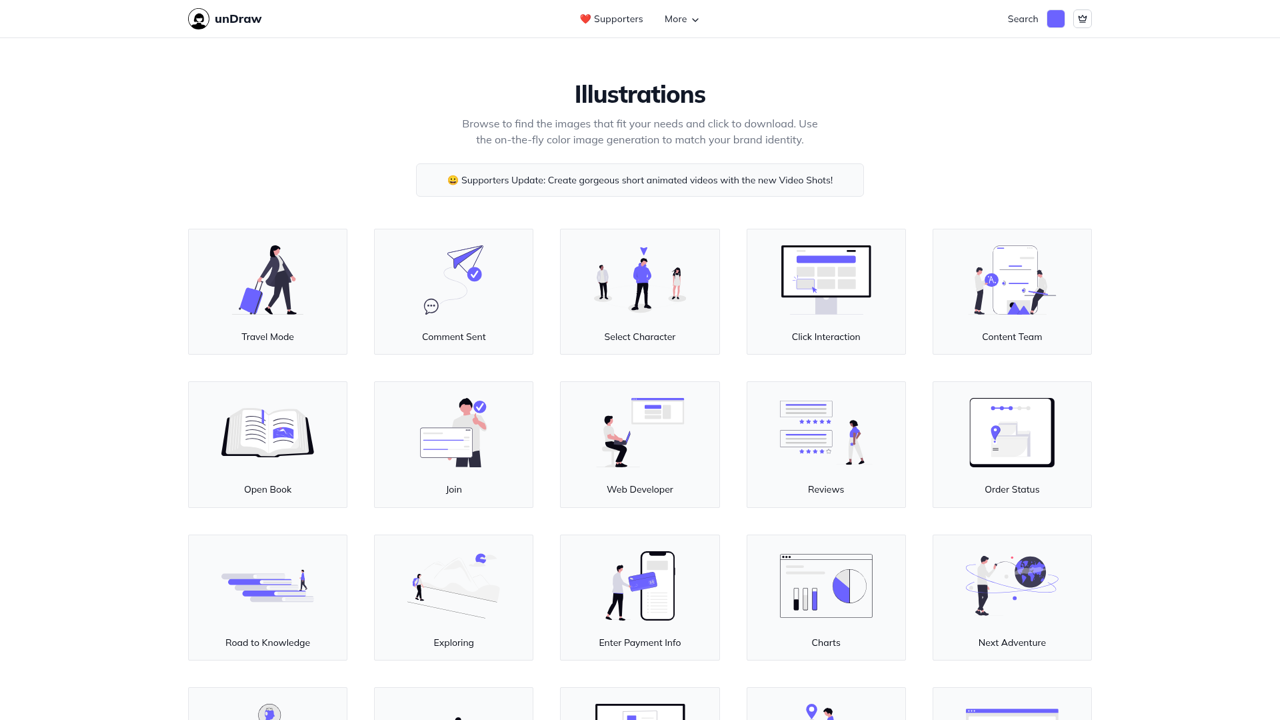
unDraw is the go-to for a clean, consistent look with the friendliest license: free, commercial use, no attribution. Recolor to your accent color on the site, download the PNG, and it drops into a Notion cover or block perfectly. Because it is one style, a Notion workspace built entirely on unDraw looks instantly coherent. It is especially good for product docs, dashboards, and public-facing wikis where a neutral, professional look fits better than something playful.
3. Storyset
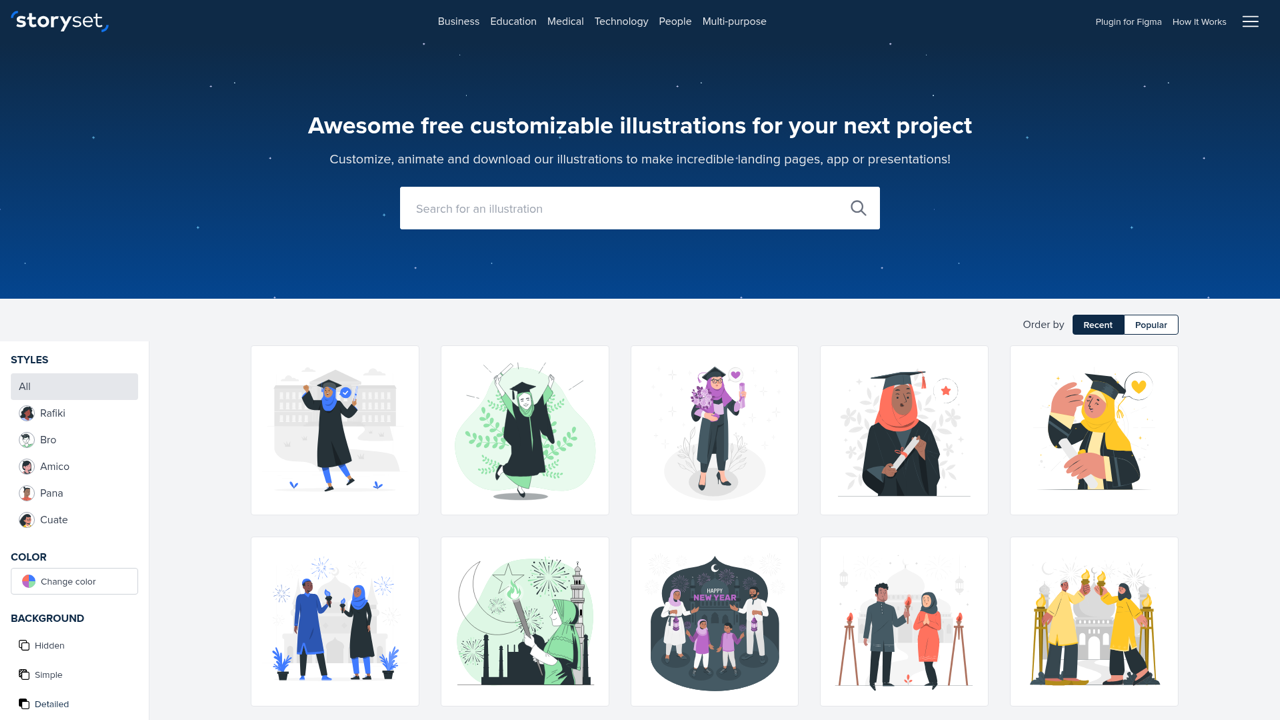
Storyset gives you five styles and an online editor, so you can tweak a scene before exporting a PNG for Notion. The free download asks for attribution, which is easy to add in small text on a page but worth knowing before you build a whole template on it. The animated versions are a nice touch for pages you share as links. For a private workspace the attribution requirement is a non-issue; for a public template or a shared page, add the credit in a small text block at the bottom.
4. Open Doodles
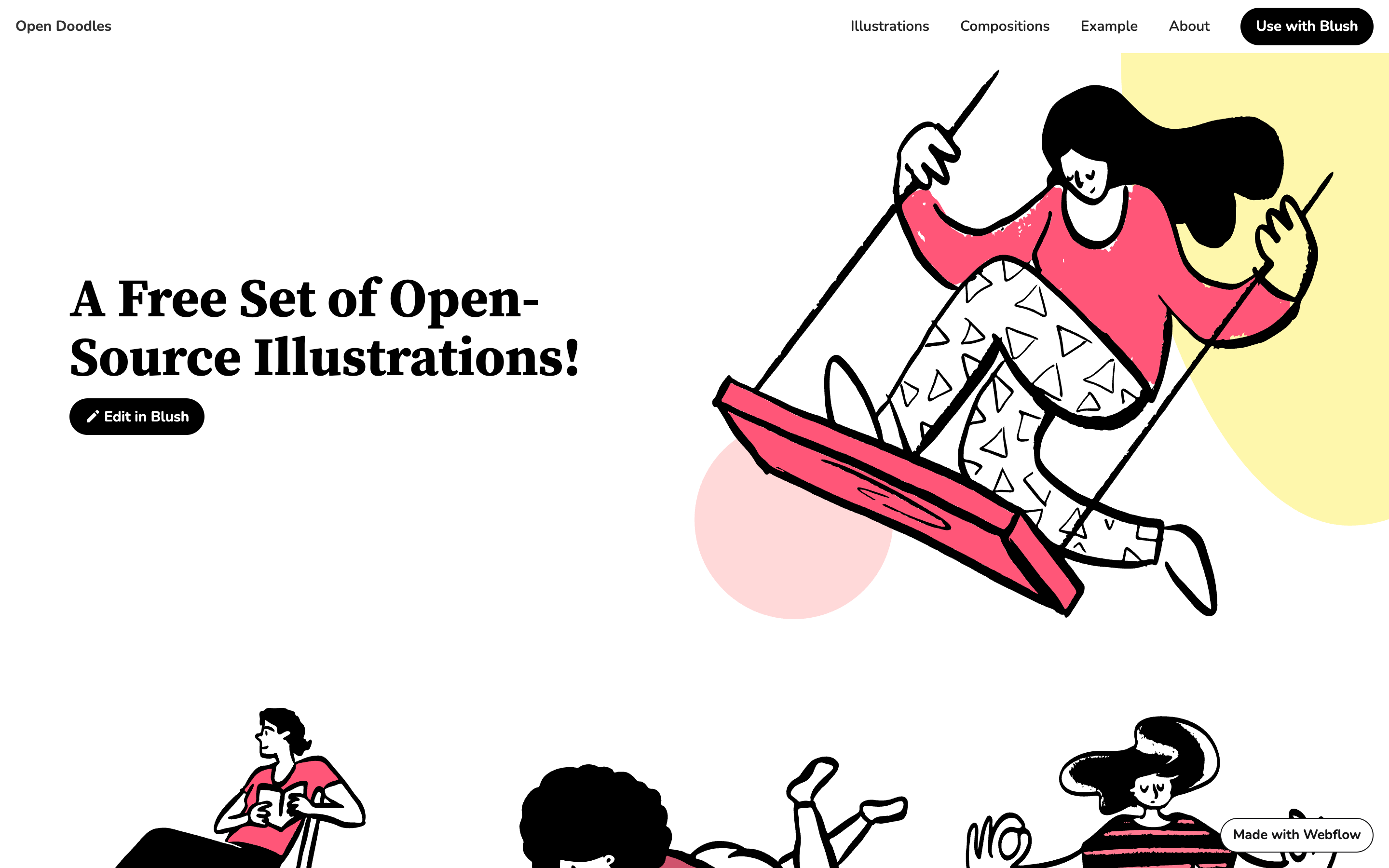
Open Doodles brings a loose, hand-drawn feel that suits personal wikis, journals, and casual team spaces more than corporate dashboards. It is free for any use with no attribution, and the sketchy style is a refreshing break from the polished vector look every other Notion template seems to use. It is the fastest way to make a personal dashboard feel like yours rather than a downloaded template.
5. Open Peeps
Open Peeps is a mix-and-match character library, ideal when your Notion pages are about people: a team directory, an onboarding hub, a CRM. You assemble a character from parts, export a PNG, and drop it in. Everything is free with no attribution, so it is safe for internal and public pages alike. Build a small cast once and reuse the same characters across an onboarding hub so new hires meet a consistent, friendly face.
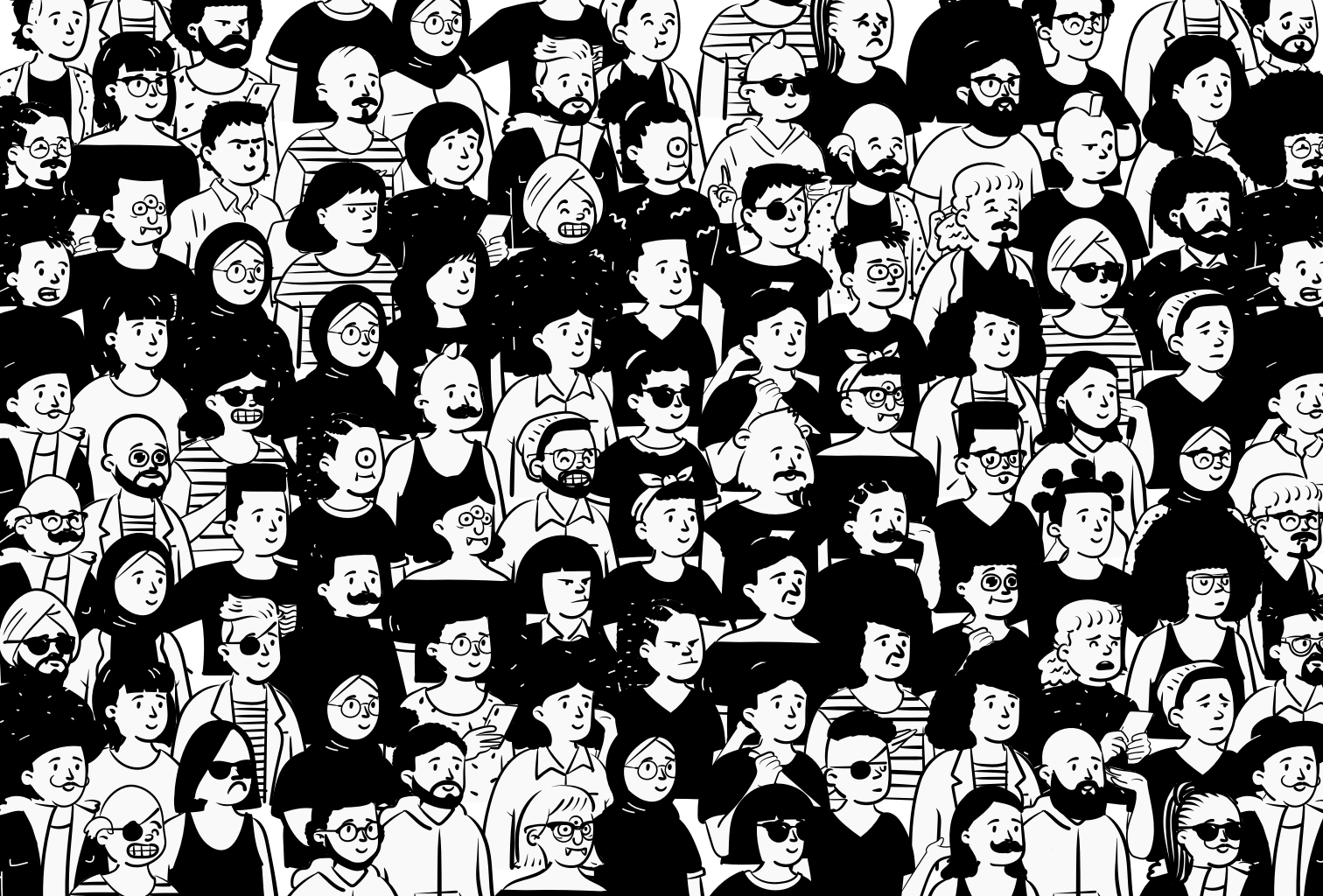
6. Blush
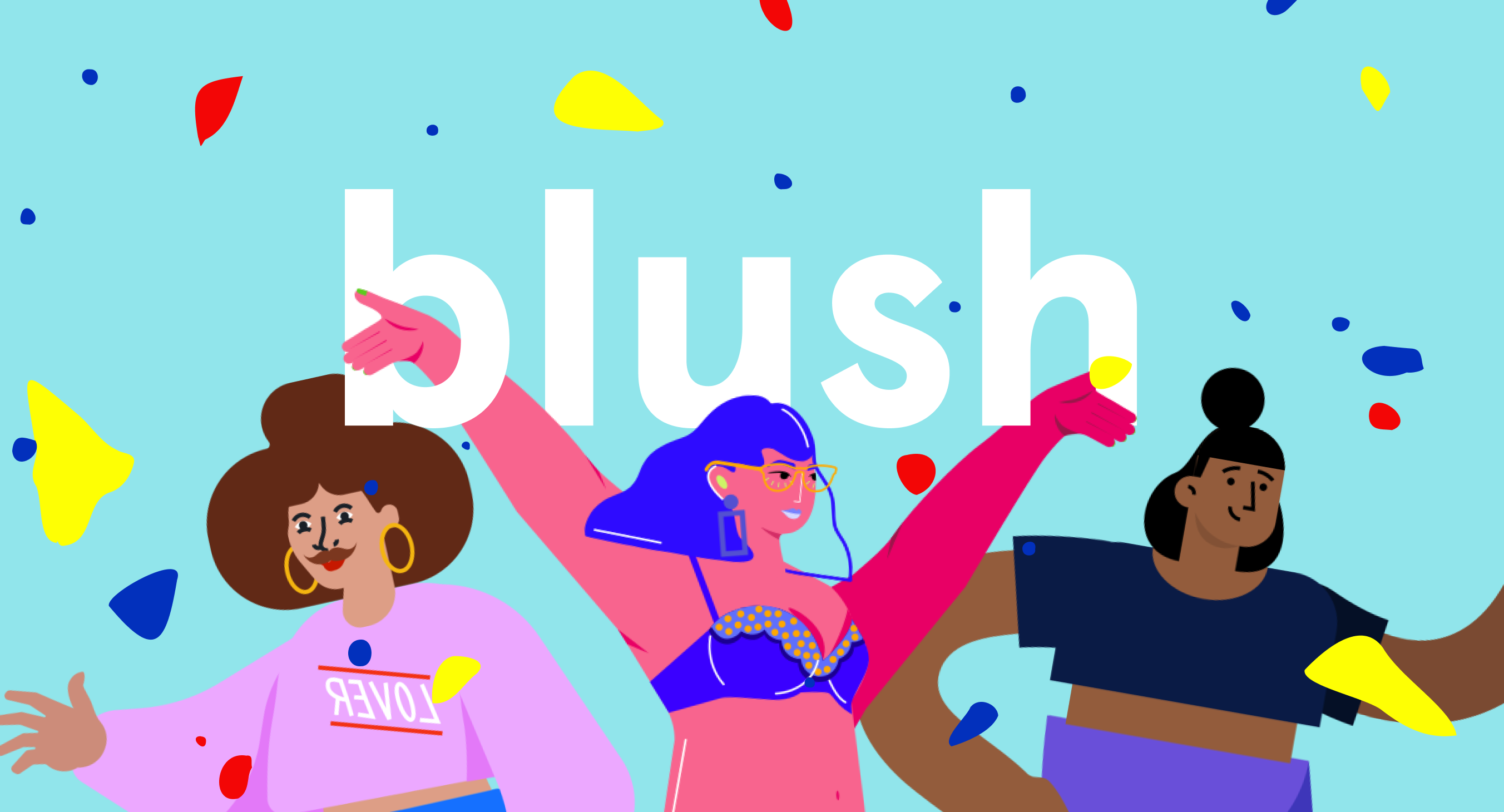
Blush turns illustrations into a customizable builder, so you can create a character that matches your brand and reuse it across a Notion workspace for consistency. It is freemium, with a free set plus paid collections, and its Figma plugin helps if you design your covers there before moving them into Notion. The payoff is a branded character you own across every page, which is hard to get from a fixed illustration set.
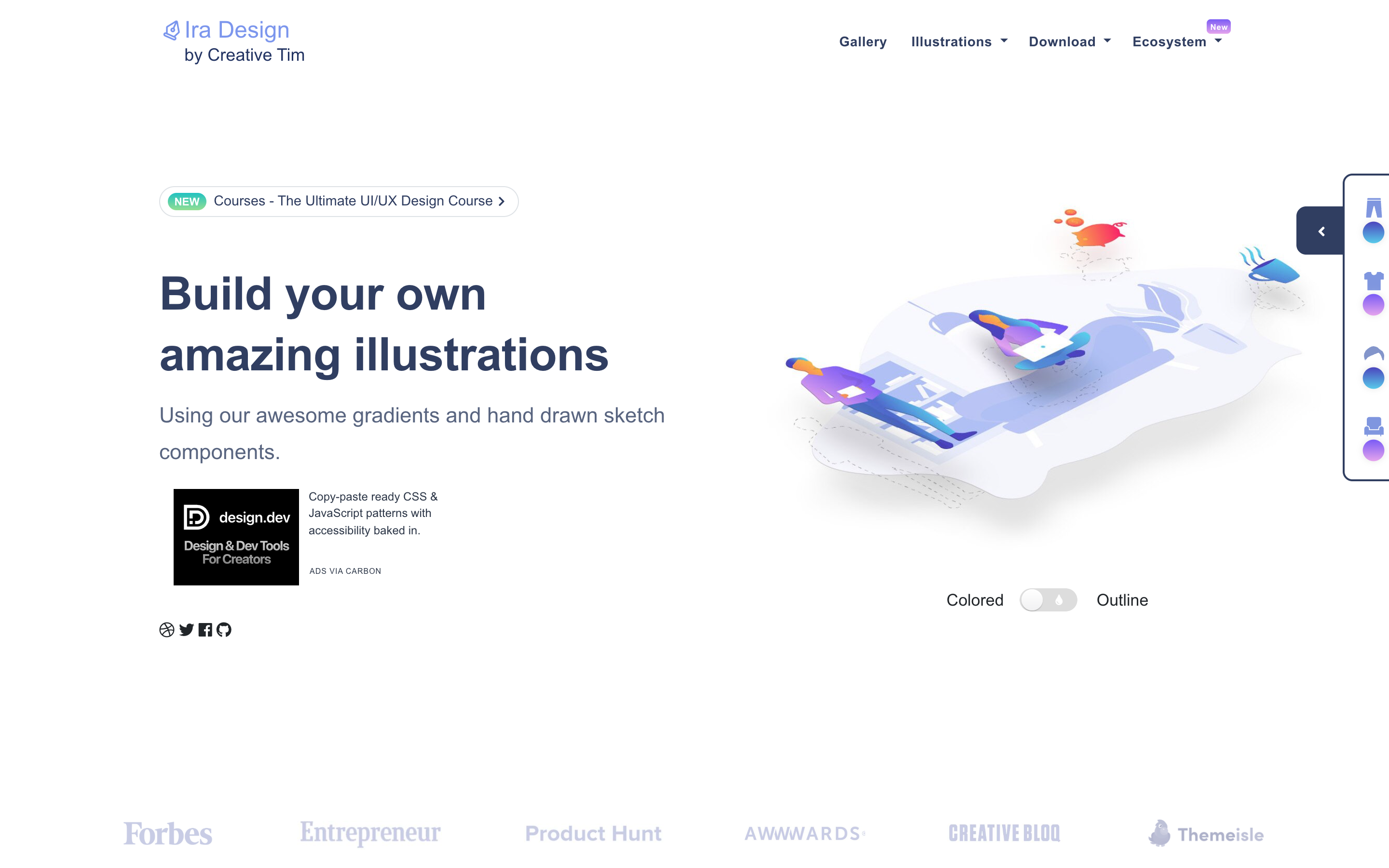
7. IRA Design
IRA Design is the pick for a gradient-forward, modern look. You combine shapes and recolor them, then export, which suits Notion dashboards that want a bit more polish than flat line art. It is free, though it leans more builder than ready-made library, so expect to assemble rather than just download. The gradients read well on a full-width Notion cover, where flat line art can look thin at banner size.
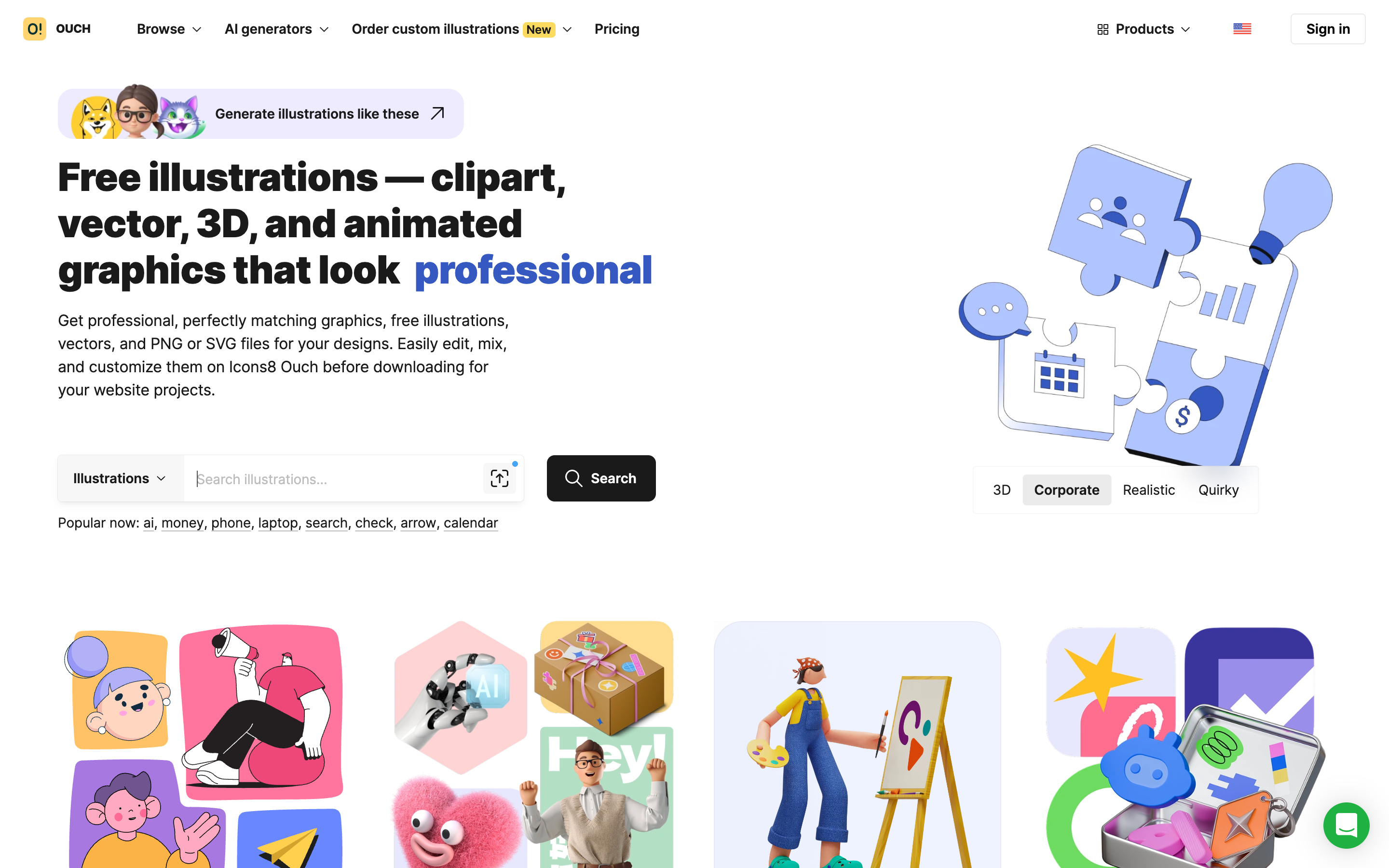
8. Icons8 Ouch
Ouch, by Icons8, is the widest catalog here, with many styles including 3D, so if you want variety across different Notion spaces from one source, it delivers. The free download asks for a link back to Icons8, or you can pay to drop it. It is a strong single stop when your pages span very different vibes. If one workspace holds a serious finance tracker and a playful side-project log, Ouch can dress both without you hunting across sites.
Which style fits your Notion setup
The right source depends on what the space is for.
For work dashboards, project hubs, and client-facing docs, a clean, neutral style keeps things professional. unDraw and Pixels Market's flat styles fit here, and both recolor to a brand accent in seconds.
For personal wikis, journals, and habit trackers, a warmer, hand-drawn style makes the space feel like yours. Open Doodles and Open Peeps lean this way.
For pages meant to stand out, like a public page you share or a template you distribute, a bolder look pays off. IRA Design's gradients or a 3D set from Ouch give a cover more presence than a thin line drawing.
If you are not sure, start from a curated set and browse by mood rather than by tool. Our illustration collections group scenes by theme, which is a faster way to find a matching set for a whole workspace than searching one keyword at a time.
Tips for illustrations in Notion
Two habits keep a Notion workspace from looking like a scrapbook.
First, pick one style and stick to it. Mixing unDraw's flat scenes with Open Doodles' sketches on the same page reads as messy. Choose a source that matches the tone of your space and use it throughout.
Second, recolor to your theme. If your Notion setup leans on a particular accent color, recolor the illustrations to match rather than dropping in defaults. Pixels Market and unDraw both let you do this before download, which is faster than editing in another tool.
Third, size for the block. A page cover wants a wide, landscape illustration, while a callout or column wants a small, roughly square one, so choose or crop the illustration to fit the slot rather than stretching a mismatched shape. A stretched illustration is the quickest way to make an otherwise tidy page look careless.
And remember the format rule: download PNG, not SVG, so your images actually render in Notion instead of showing up as file attachments.
Verdict
For most Notion pages, start with a free, no-attribution source: unDraw for a clean look, Open Doodles for a hand-drawn one, or Open Peeps when it is about people. When you want several matching styles and a PNG that Notion renders without fuss, browse our free illustrations and recolor to your theme before you download. One consistent style, in PNG, recolored to match, is all it takes to make a Notion workspace look designed rather than default. And because every option here is free, you can try two or three on a single page before you commit an entire workspace to one look.